
Zed: The Next-Generation Code Editor for Developers
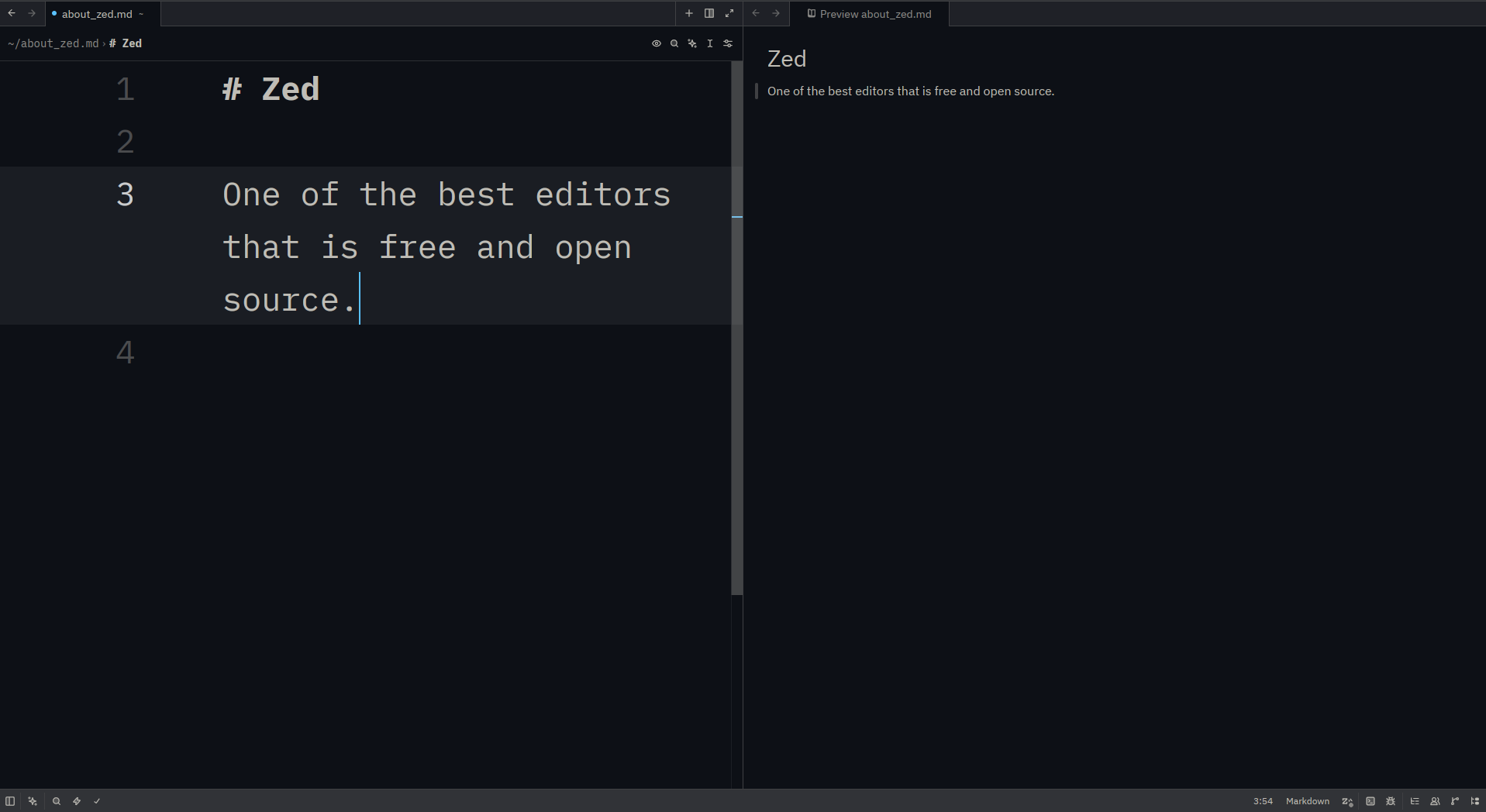
Many developers use editors like VS Code or JetBrains. Some of them are annoyed with these tools because they are slow and sometime even freezes up. Zed changes everything. It is a brand new code editor that is made to be incredibly fast. Zed came out in 2024. It focuses on speed, teamwork, and making coding easy for developers.
The team that made Atom created Zed. They built it from scratch using a programming language called Rust. It uses your computer's graphics card to run smoothly.
Advantages of Zed
One of the best things about Zed is that it is completely free and open-source, even though it feels like a premium, paid tool. Some advantages of using Zed are summarized here.
Blazing fast
Speed claims are cheap in the editor world. Zed delivers. Built entirely in Rust and rendering via Metal/WebGPU, Zed opens files, scrolls through codebases, and handles syntax highlighting faster than any Electron-based editor can do. (Most famous Electron-based code editor is VS Code).
- Startup time: Near-instant. About < 100ms cold starts.
- Scrolling: Buttery smooth at 120fps on supported displays.
- Large files: Multi-megabyte files that freezes VS Code or other heavy IDEs are handled gracefully.
Native collaborative editing
Real-time collaboration is a first-class citizen in Zed, not a plugin bolted on top. You can share your project with a teammate and have them edit files alongside you with low-latency sync, closer to a Google Docs experience than anything else in the editor space.
Features include:
- Channels: Persistent voice/text channels baked into the editor
- Live sharing: Anyone with a Zed account can join your session
- Follow mode: Follow a collaborator's cursor as they navigate the codebase
AI integration
Zed has deep, native AI integration, not a messy sidebar extension. The AI assistant panel supports multiple providers (Anthropic's Claude, OpenAI's GPT, local models via Ollama) and is designed to fit into your editing flow rather than interrupt it.
You can:
- Open an inline assistant directly in your editor buffer
- Ask the AI to rewrite, explain, or generate code in context
- Use the full-panel assistant for longer conversations
- Bring your own API keys or use Zed's built-in credits
Vim mode
Zed's Vim mode is one of the most complete and faithful Vim emulation layers outside of Vim or Neovim. It handles motions, registers, macros, and visual modes without the usual gaps, we can see in other editors like VS Code and Sublime Text.
Minimal, distraction-free interface
Zed's UI is completely clean. There are no distracting menus, crowded icon bars, or annoying pop-up notifications. It shows only your code, your files, and a terminal if you need it.
Use multibuffers for cross-file editing
Zed has a unique multibuffer feature: you can search across your project and then edit results in-place without opening each file individually. Use Cmd+Shift+F, get your results, and edit right there. This is a game-changer for large refactors.
Comparison with VS Code and Neovim
Personally, Neovim is my other favorite editor. And, I also use VS Code a lot. All three: Zed, VS Code and Neovim are very good editors. They are best ones out there.
| Feature | Zed | VS Code | Neovim |
|---|---|---|---|
| Startup Speed | Excellent | Slow | Excellent |
| Memory Usage | Low | High | Very Low |
| Collaboration | Native | Extension | None |
| Plugin Ecosystem | Growing | Massive | Large |
| AI Integration | Native | Extension | Extension |
| Language Support | Good | Excellent | Good |
| Vim Mode | Strong | Decent | Native |
| Config Complexity | Simple | Moderate | High |
Zed is not perfect yet. It does not have as many extensions as VS Code. But it is great for developers who want speed, focus, and teamwork. It is a very strong tool although it's very new.
Tips for Using Zed Properly
To make most out of Zed, we have summarized some tips for you.
Master the Command Palette
Press Cmd+Shift+P (macOS) or Ctrl+Shift+P (Linux) to open the command palette. Almost everything in Zed is accessible here: switching themes, toggling panels, running tasks, changing language settings. Make it your primary navigation tool.
Learn the essential keybindings
| Action | Shortcut |
|---|---|
| Open file | Ctrl + P |
| Find in project | Ctrl + Shift + F |
| Toggle terminal | Ctrl+` |
| Split pane | Ctrl + \ |
| Go to definition | F12 |
| Open AI assistant | Ctrl + ? |
For more, you can open editor and Open Default Key Bindings on menu.
Use the inline AI assistant effectively
Instead of switching to a chat window, press Ctrl + Enter with text selected to open an inline AI prompt right in your buffer. This keeps you in the file while getting suggestions. Use it for:
Use the outline panel for large files
Press Cmd + Shift + O (its Oh, not Zero) to open the symbol outline. For large files with many functions and classes, this is the fastest way to navigate without scrolling. Works great for TypeScript interfaces, Python classes, and Rust modules.
Set up LSP
Zed automatically detects, downloads, and manages Language Server Protocols for most languages, including TypeScript, Python, and Go, the moment you open a matching file. You do not need to install them manually.
However, some languages require system-level installation.
# Rust (comes with rustup)
rustup component add rust-analyzer

# Python (Optional, if you prefer a global install via pipx
# instead of Zed's auto-managed binary)
pipx install pyright
Who Should Switch to Zed?
First, edit your project using Zed. Use its features and if its smooth enough for your project and user experience is better than other editors, you can use Zed continuously. You can go back to your previous editors any time when you miss their features.
Remember, there is no perfect editor.
Zed isn't trying to be everything for everyone. It has a clear point of view: fast, native, collaborative, and AI-aware. It is completely free and open-source. You can download Zed at zed.dev.

1
Updated: Oct. 15, 2026
Similar Blogs
-
Daily use VS Code Shortcuts for Developers
VS Code is one of the most popular code editor for developers. According to
Stack Overflow Developer Survery 2025, 75.9% of the developers used …Oct. 13, 2026
-
Top Sites for Coding Challenges in 2026
Whether you're a beginner trying to sharpen the basics of programming or an expert developer preparing for technical interviews, coding challenge platforms are one of …
Oct. 14, 2026
-
Top Websites to Learn Programming in 2026
There are many good resources on internet for free. You don't have to spend money at all to learn. Either you are into computer science, …
Oct. 15, 2026




Leave a comment
Comments